Intro
Welcome to Tvini, where we're dedicated to transcending Augmented Reality (AR) from the buzz word into practical solutions.
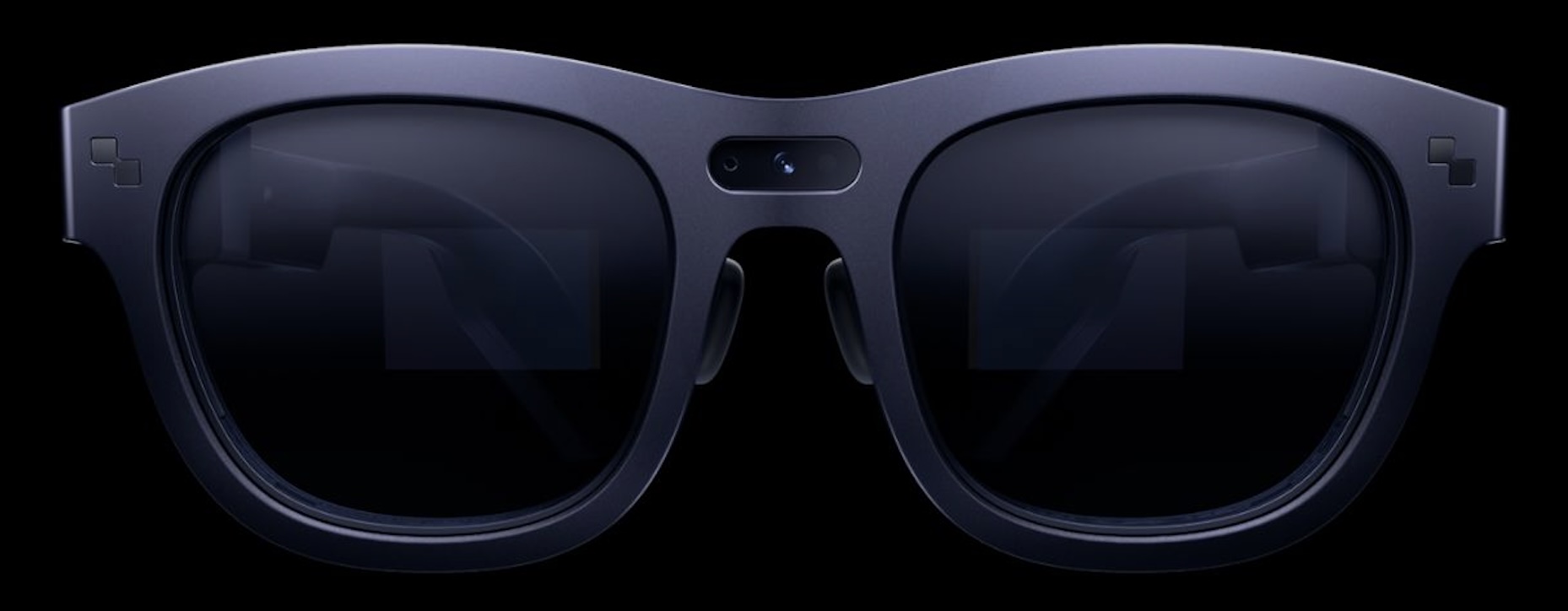
AI is advancing at an unprecedented pace and accelerating. Traditional devices (laptops and phones) were never built to seamlessly integrate super-intelligent capabilities. The right user experience is critical to augment human abilities with AI’s superpowers. Augmented Reality (AR) unlocks the full potential of merging human intelligence with superintelligence.
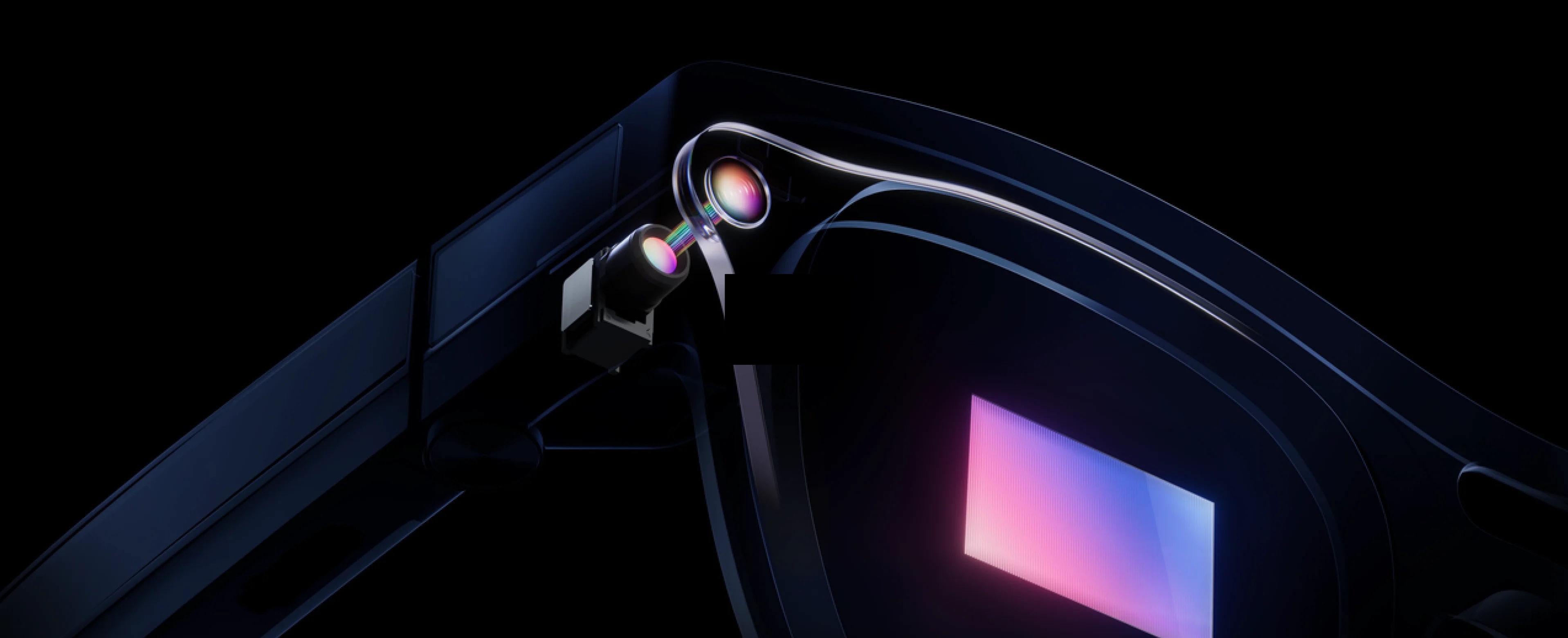
Imagine slipping on a sleek pair of AR smartglasses. Colored binocular display that sees what you see, hears what you hear, and understands what you ask. In that moment, the world opens up in ways never before possible. You’re walking through your day, and complex questions—once reserved for long hours of research or back-and-forth with experts—now have answers delivered instantly, floating right in your field of view.
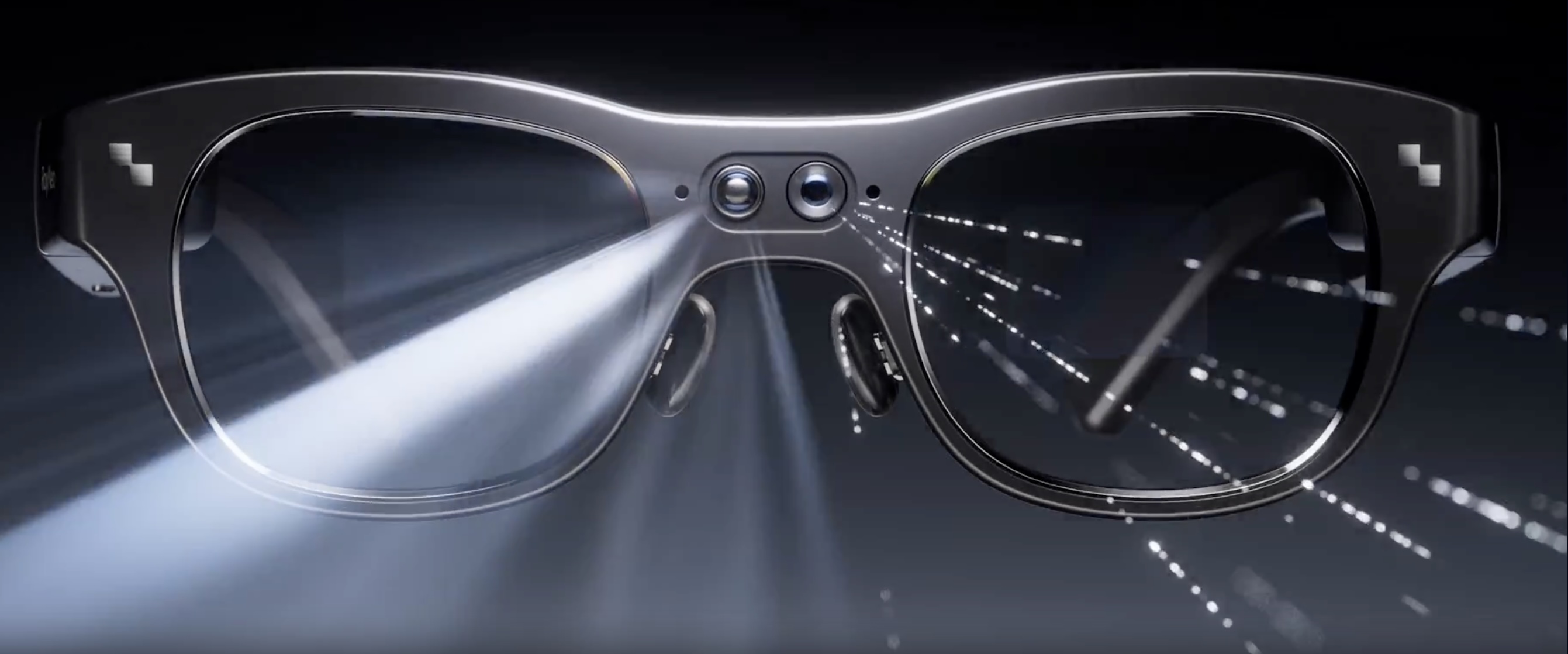 AR hardware has undergone significant improvements over the years. The industry went from heavy, bulky headsets to lightweight devices that look like regular glasses. However, the software is still lacking. That's where we come in.
Product
Virtual Desktop in smartglasses
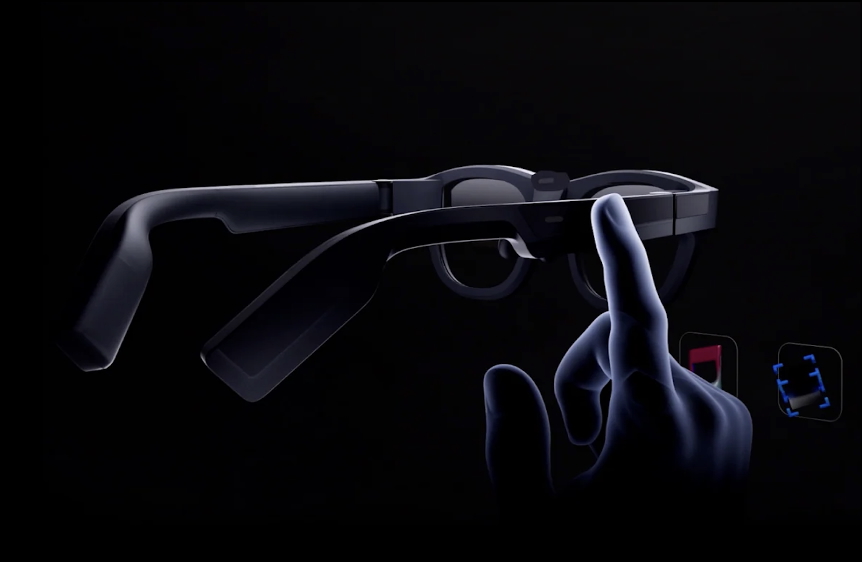 Our cutting-edge solutions empower users to effortlessly interact with AR glasses through intuitive hand gestures, creating a virtual keyboard and mouse for seamless control. Moreover, we provide innovative solutions for establishing a virtual desktop environment within AR glasses, enabling users to operate in a laptop-free, desktop-like setting.
Explore the AR virtual Desktop app for yourself, see the details product page.
Phone in AR glasses
As the technology evolves, we encounter new limits and new opportunities. Phones have made technology more portable, however they hit a natural limit: small screens and the need to look down and switch context every time you want to do something. As AI makes interaction faster and more conversational, the idea of pulling out a phone just to tap and scroll is starting to feel outdated. The next step in this evolution is smartglasses—technology that keeps you present instead of pulling you out of the moment. With AR phone mirroring, your phone’s screen appears directly in your field of view, letting you do anything you’d normally do on your phone without breaking focus. Messages, apps, navigation, etc just more seamless.
Explore AR phone for yourself, see the details on product page.
Our ultimate goal is to empower everyday users to enhance their capabilities and unlock superhuman intelligence through augmented reality. If you have questions, drop us a line.
About
We are working tirelessly to redefine the future by seamlessly blending
the virtual and physical worlds, empowering individuals to envision a future where every glance
opens up a new dimension of possibility.
Tvini - founded by Alex Lobzhanidze

Founder background
-
PhD in Computer Science
-
Tech Lead/Software Engineer, Amazon, 7 years
-
Sr. Machine Learning Engineer, TikTok, 3 years
Backstory
Technology has undergone a remarkable evolution, from desktop computers to the portable laptops, and eventually to the powerful smartphones that put massive amount of information in our pockets. Each shift brought computing closer to the user, making it more accessible, more portable, and integrated into daily life.
Now, we stand on the verge of the next paradigm: AR smartglasses. These wearable devices promise to move digital interaction from our hands to our line of sight, overlaying useful information directly into the physical world. With voice, gesture, and visual input, AR smartglasses have the potential to redefine how we access knowledge, communicate, and navigate reality—making technology not just portable, but seamlessly immersive and ever-present.
I began exploring the world of Augmented Reality in 2020-testing various hardware, developing prototype applications, and engaging directly with potential customers. In 2024, I encountered an AR device that, for the first time, offered a binocular view, full-color display, and the capabilities of a true standalone system. It felt like the hardware MVP had finally arrived. However, the software was still far behind. The following year, I onboarded my first customer, built an initial software MVP, and ramped up development. With growing conviction in the future of this technology, I made the decision to quit my corporate job and commit full-time to building the next generation of AR-powered solutions.
Contact
Thank you!
Thank you for submitting the form!
Someone from our team will reach out to you soon.
Back to home page.
Download Center
Download AR Remote Desktop
This application allows you to use AR smartglasses as your computer.
Download Remote Desktop for RayNeo X2 and
access your Laptop/Desktop anytime, from anywhere.
Back home.
Instructions page
AR Desktop - user manual
AR Desktop enables users to treat smartglasses (RayNeo X device) as a personal computer.
You can download the app, set up Desktop server and connect from anywhere, anytime.
Instructions below guide step by step of a simple set up process.
1. Download RayNeo X app.
This app works specifically for RayNeo X devices.
You can drop APK file directly into X2 viewer, or install directly from the device.
(If you are beginner, reach out via contact form to inquire how APK installation works.)
2. Download Desktop application
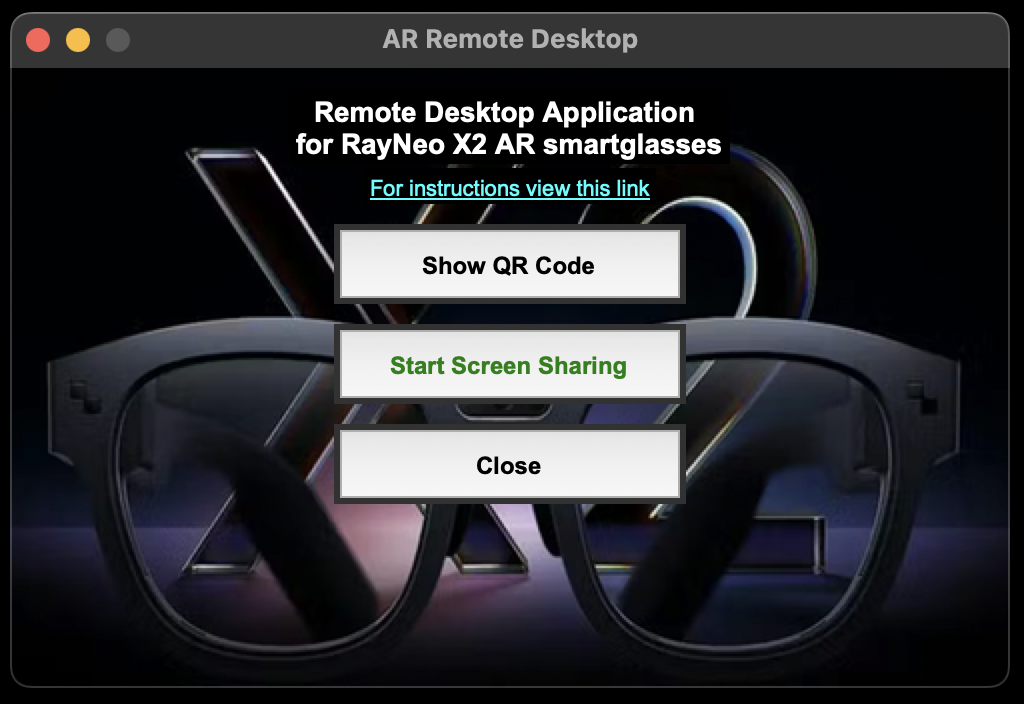
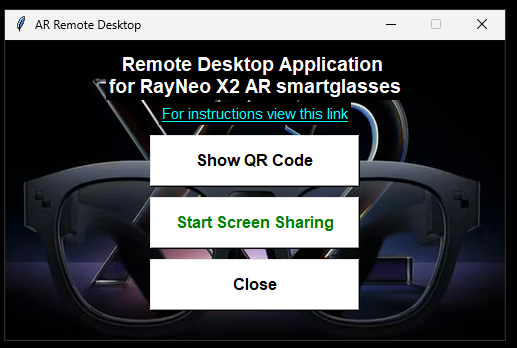
Download Desktop version for your OS, follow simple installation and open the app.
| Mac OS |
|
| Windows |
|
3. Pair Desktop client with AR device
On Desktop application, click "Show QR Code"
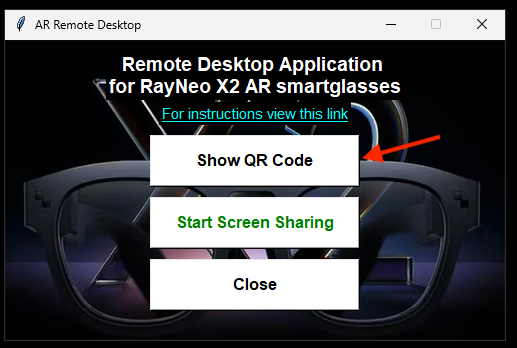
You will see pop-up window
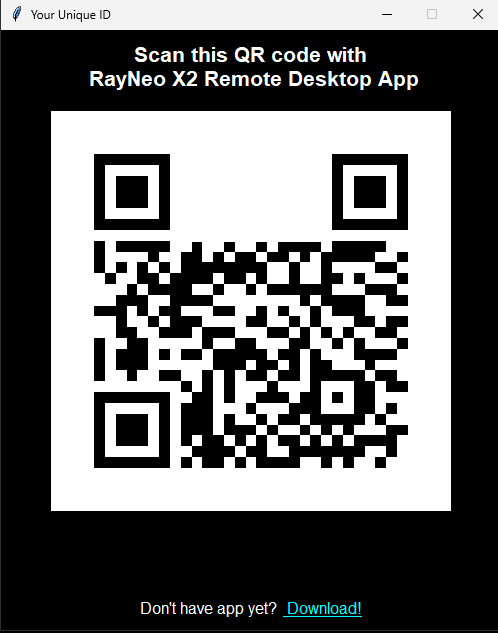
Now open RemoteDesktop app on RayNeo X2.
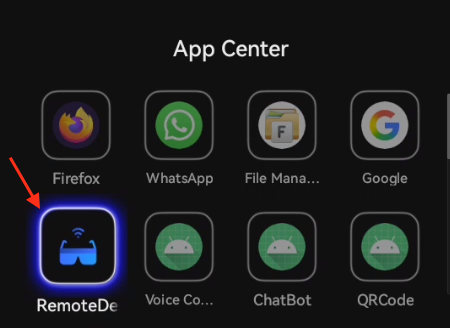
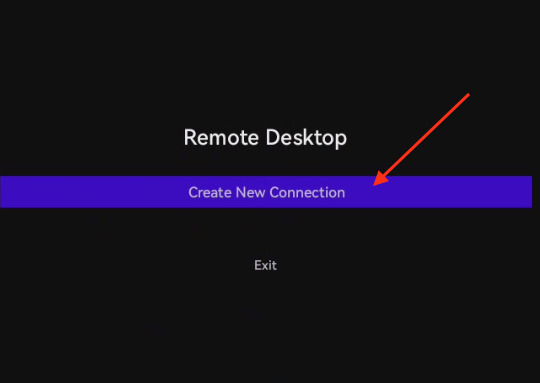
When opening app for the first time, you don't have any connections yet, so you will need to pair with your desktop.
Create New connection will be selected by default. Tap on it.
Aim your AR glasses camera at the QR code shown on display
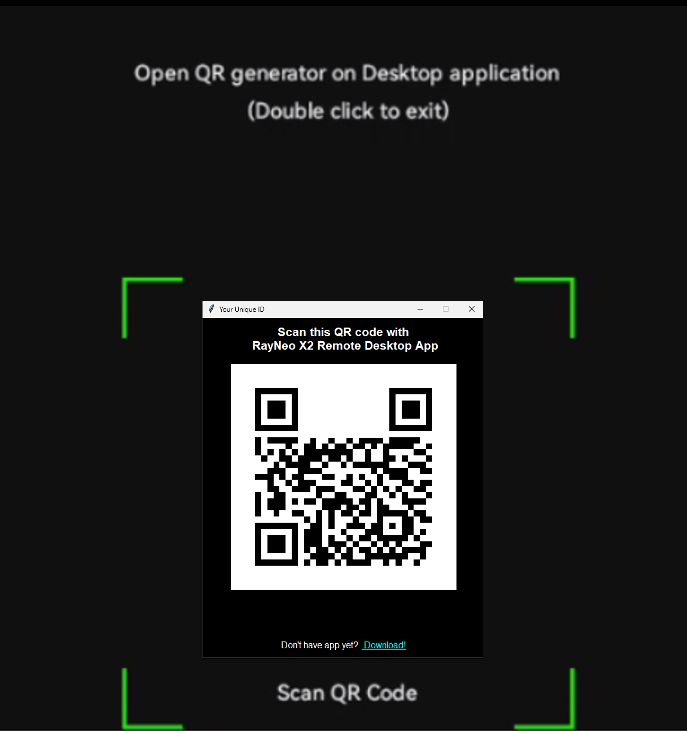
After QR code is scanned, app will restart.
Close QR code window.
4. Connect to remote desktop
On Desktop application, click Start Screen Sharing
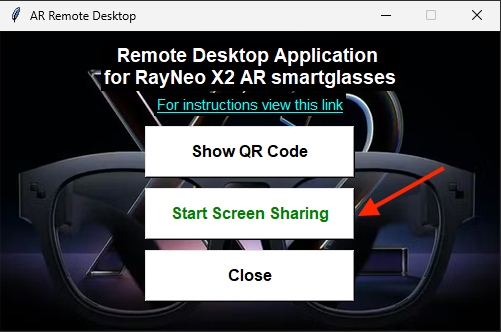
Please note: on Mac OS, make sure you give appropriate permission in settings to allow app screen share.
QR code you scanned is unique identifier of the desktop. App restart is required to load new parameters.
After the app re-launches, you will see a new button. Tap on it...
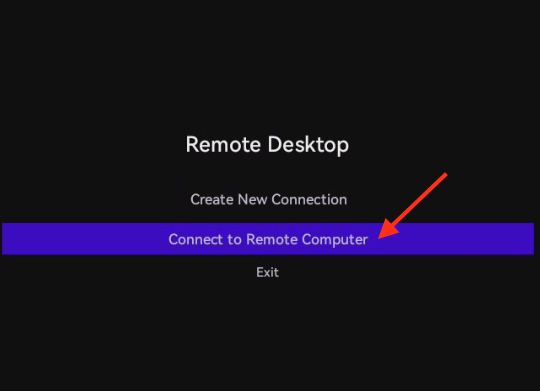
...and you should be seeing your desktop via AR glasses.
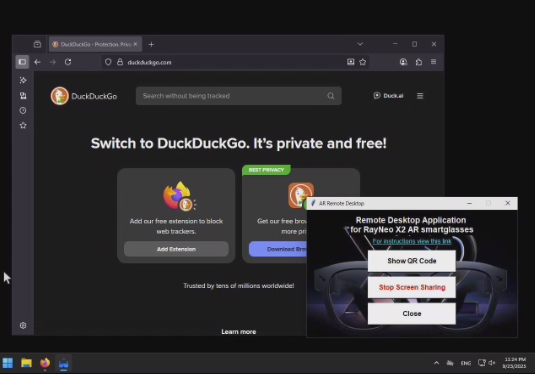
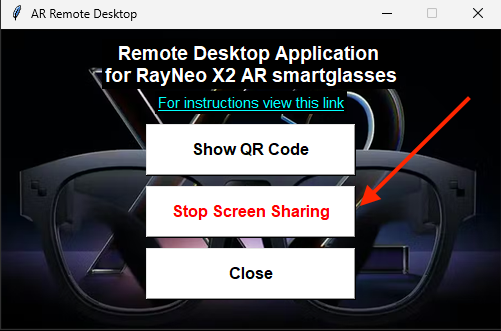
If you decide to stop screenshare, just click Stop Screen Share on Desktop.
On RayNeo X2, double tap on the right frame to exit the view.
Please note: free version of the app, only allows one connection at a time.
Hope these instructions were helpful!
If you have any questions, just send the message.
Phone on AR
Share Phone Screen with RayNeo AR smart glasses (X2 and X3)
If you own RayNeo AR smartglasses (X2 or X3), you may want to share your phone screen with gasses for hands free use.
This is instructions page with few simple steps to set up phone screen share.
BEFORE YOU START: please make sure to connect Phone and AR glasses to network!
1. Download RayNeo app.
This app works specifically for RayNeo X2 and X3.
Install APK with the option that best works for you (ADB shell, drop APK, etc.)
2. Download Phone App
Download Phone App. (Please note: this is Android only. iPhone app to be released later.)
Install application on your Android phone.
3. Pair Phone with AR glasses
On your Android phone open recently installed AR Phone app. You will see simple app with QR code and a button.
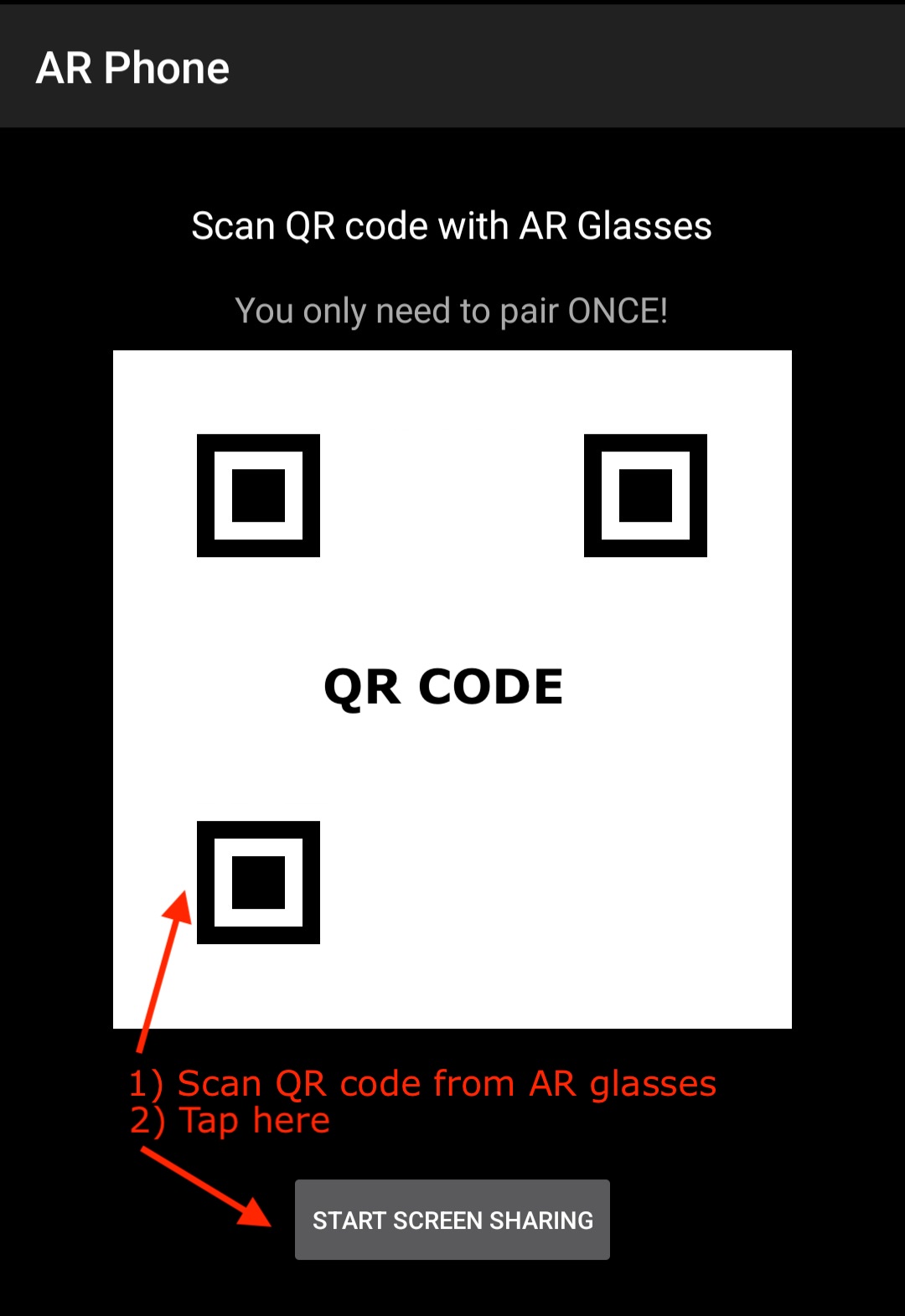
Now, on RayNeo X glasses, open AR Phone app.
Select and tap "Create New Connection".
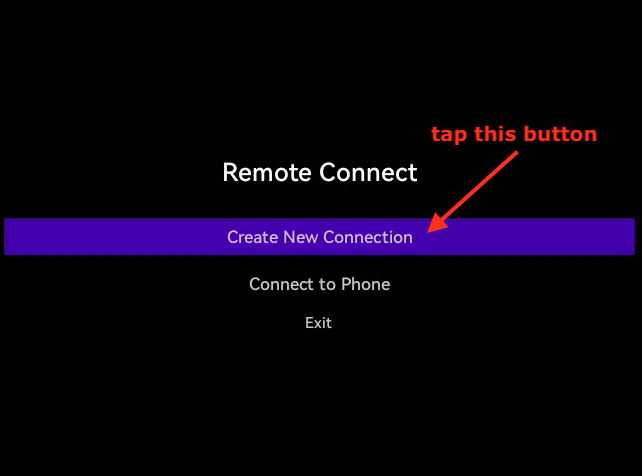
This will start QR code scanner, aim AR glasses camera at your phone and scan QR code.
Once QR code is scanned, app will go back to home page.
Make sure you tap "START SCREEN SHARING" button on your phone.
On your RayNeo app, tap "Connect to Phone"
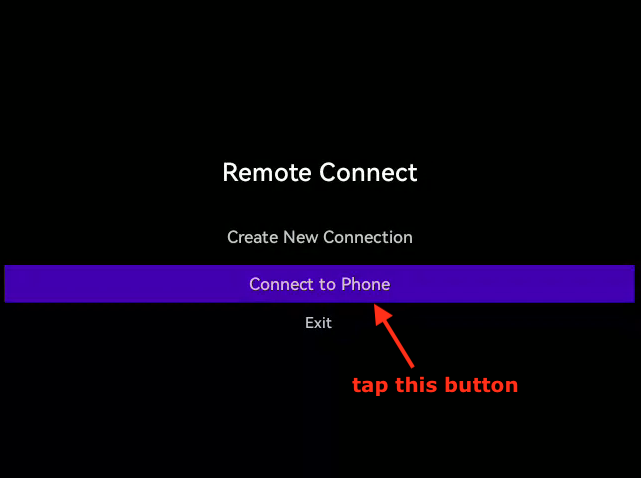
That's it!
PLEASE NOTE: you only need to pair the phone once.
Next time follow these simple steps:
- Make sure you launch the phone app first
- tap START SCREEN SHARING.
- Launch RayNeo AR Phone app and tap "Connect to Phone"
Hope these instructions were helpful. Please send feedback if you have any.
![[Android]](images/png/android.png)
![[MacOS]](images/png/ios.png)
![[Linux]](images/png/linux.png)